
Are you facing the dreaded black screen issue while trying to play Ready or Not on your PC?
This common problem can dampen the excitement of tactical gameplay, leaving you in the dark both literally and figuratively.
Fear not, as this guide is designed to shine a light on the issue.
In this blog, we will provide you with a step-by-step troubleshooting strategy to help you get back to orchestrating high-stakes missions in no time.
How To Fix Ready Or Not Black Screen Issue On PC?
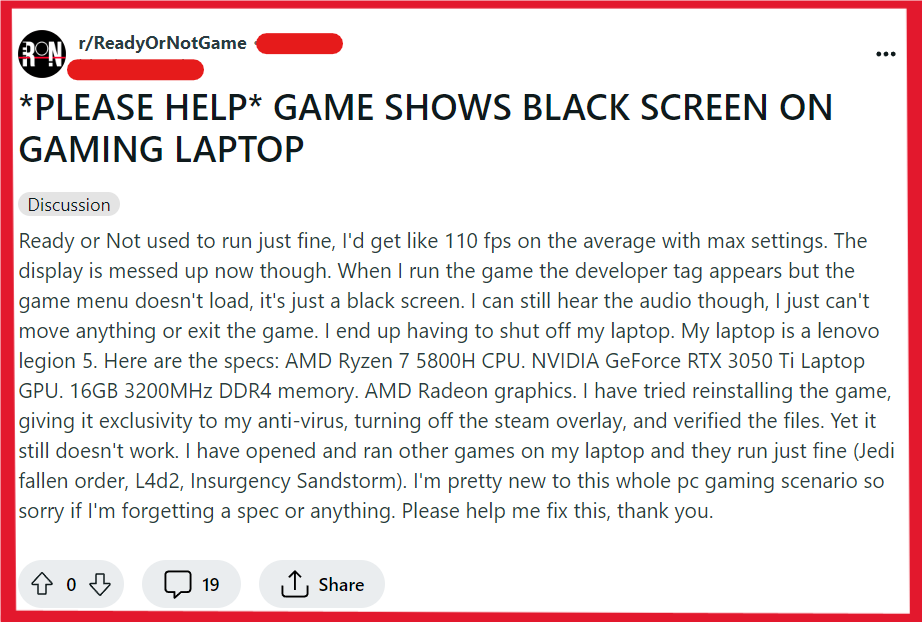
To fix Ready or Not black screen issue on PC, you can restart your pc, verify the Ready or Not game file integrity, and update graphic drivers. Additionally, you can run system file checker, and disable conflicting software.
1. Restart Your PC
The first and simplest step is to restart your computer. This can clear out any temporary glitches that may be causing the black screen issue.
- Close all programs.
- Click Start > Power > Restart.
2. Verify Ready Or Not Game File Integrity
Corrupted or missing game files can often lead to a black screen. This process will check for any missing or corrupted files and replace them as necessary.
- Open Steam and navigate to your Library.
- Right-click on Ready or Not and select Properties.
- Go to the Local Files tab.
- Click on “Verify integrity of game files.”
3. Update Graphics Drivers
Outdated graphics drivers can cause compatibility issues with games.
- Visit your graphics card manufacturer’s website (NVIDIA, AMD, Intel).
- Locate the drivers section and download the latest driver for your specific model.
- Install the driver and restart your PC.
4. Run System File Checker (SFC)
The SFC scan can fix corrupted system files that might be causing the black screen.
- Press Windows Key + X and select Command Prompt (Admin) or Windows PowerShell (Admin).
- Type
sfc /scannowand press Enter. - Allow the scan to complete and repair any issues.
5. Disable Conflicting Software
Some programs, especially those that manipulate sound or graphics settings, can interfere with Ready or Not.
- Open Task Manager (Ctrl + Shift + Esc).
- Go to Startup tab.
- Right-click suspected programs > Disable.
- Restart PC.
6. Change Audio Output Settings
Some user suggest about a fix related to changing audio output settings.
- Use the Windows + Ctrl + V shortcut to access volume settings.
- Go to “Volume mixer” and switch Ready or Not from “Default” to another output if available.
7. Adjust Compatibility Settings
Running the game in compatibility mode for an older version of Windows can sometimes resolve black screen issues.
- Navigate to the Ready or Not executable file in your Steam folder.
- Right-click on the executable and select Properties.
- Go to the Compatibility tab.
- Check “Run this program in compatibility mode for:” and select an older version of Windows.
- Apply the changes and try launching the game again.
8. Uninstall And Reinstall Ready Or Not
If none of the above solutions work, you may need to uninstall and reinstall Ready or Not.
- In Steam, go to Library.
- Right-click Ready or Not > Uninstall.
- Restart your PC.
- Open Steam, go to Library.
- Right-click Ready or Not > Install.
9. Contact Ready Or Not Support
If you’ve tried all of the above solutions and still encounter the black screen issue, it may be time to seek assistance from the Ready or Not support team.
They can provide you some troubleshooting steps to fix this issue.