
Have you ever found yourself unable to select a world in Lego Fortnite? If so, you’re not alone.
Many players have faced this challenge, but fear not – solutions are available!
In this blog, we’ll explore effective methods to resolve the “Can’t Select World” problem in Lego Fortnite, ensuring that you can fully enjoy your gaming experience.
How To Fix Can’t Select World In LEGO Fortnite?
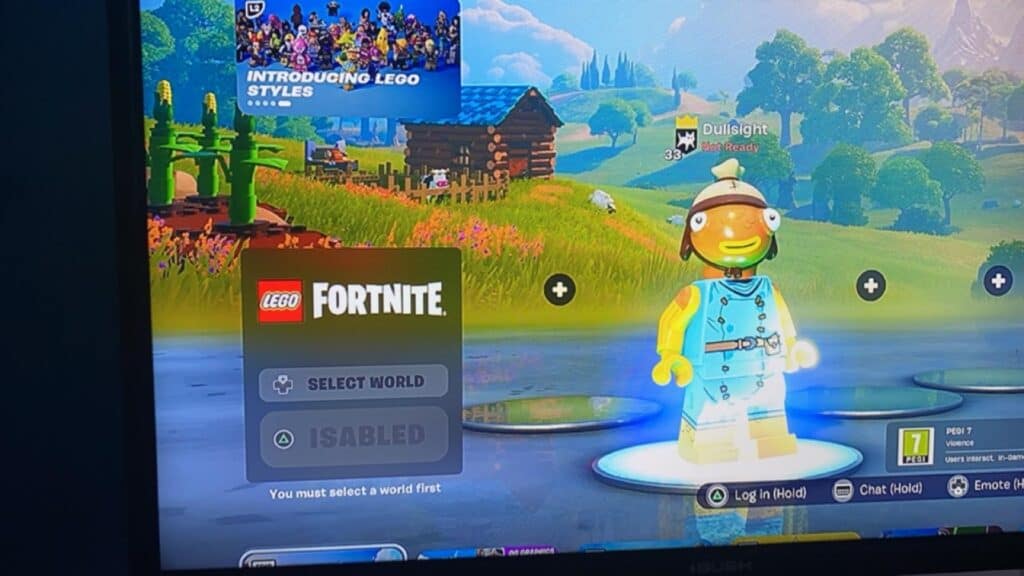
To Fix can’t select World in Lego Fortnite you can restart LEGO Fortnite, use Battle Royale to reset, and check server status. Additionally, you can restart your console, and connect only one controller.
1. Restart LEGO Fortnite
Sometimes the simplest solutions can be the most effective. Before diving into more complex troubleshooting, a simple restart can often clear up the issue you’re facing with selecting a world in LEGO Fortnite.
- Close the LEGO Fortnite game completely.
- Wait a few moments.
- Launch the game again.
2. Use Battle Royale To Reset
Sometimes the game needs a little nudge to reset its state. Switching modes within Fortnite can help achieve this and potentially clear up any lingering issues with world selection in LEGO Fortnite.
- Switch from the current game mode to Battle Royale.
- Enter a Battle Royale match and wait until you’re either on the spawn island or in the battle bus.
- As soon as you have control, leave the match to return to the main menu.
- Now, attempt to access the game mode or feature you were having trouble with.
3. Check The Server Status Of LEGO Fortnite
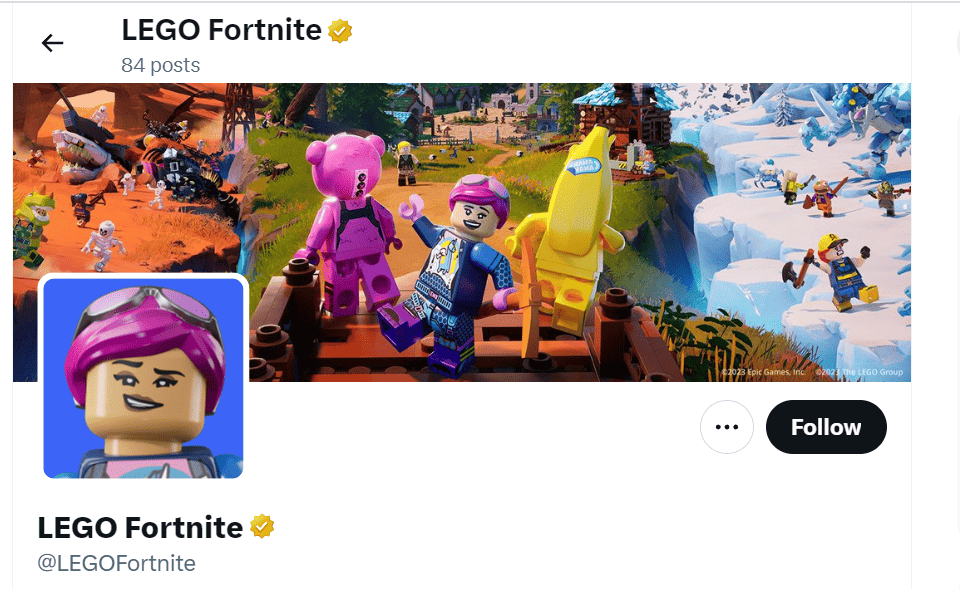
Server issues can prevent you from accessing certain features in online games, including world selection in LEGO Fortnite. Checking the server status should be one of the first steps when troubleshooting this kind of problem.
- Visit the official LEGO Fortnite website or their social media channels.
- Look for any announcements or updates regarding server status.
- If the servers are down, you may need to wait until they are back up before you can select a world.
4. Restart Your Console
Sometimes, the simplest solution to fix a glitch like not being able to select a world in a game is to restart your console. This can clear temporary files and resolve minor software conflicts that might be causing the issue.
- Turn off your console completely; avoid using rest mode (especially on PlayStation).
- Unplug the console from the power source for about 1-2 minutes.
- Plug the console back in and turn it on.
- Once the system has restarted, launch LEGO Fortnite and check if you can select a world.
5. Connect Only One Controller (For Console)
Conflicts from multiple controllers being connected to your console can sometimes interfere with game input, preventing you from selecting options like choosing a world in LEGO Fortnite.
- Disconnect any additional controllers from your console.
- Ensure that only one controller is synced or connected via a cable.
- With just one controller active, launch the game and attempt to select a world.
6. Ensure Single Account Login (For PlayStation)
On PlayStation consoles, having multiple PSN accounts logged in at the same time can sometimes cause issues with games, particularly with features that involve game progression or selection.
- Log out from all accounts on your PlayStation.
- Log back in with only the account that you use to play LEGO Fortnite.
- Try accessing the world selection to see if the issue has been resolved.
7. Uninstall And Reinstall LEGO Fortnite
Reinstalling the game provides a fresh start, often eliminating any glitches or bugs that were causing the issue.
On PC (Epic Games Launcher):
- Open Epic Games Launcher.
- Go to ‘Library‘.
- Click on the ‘Settings‘ gear icon on the LEGO Fortnite tile.
- Select ‘Uninstall‘.
- Restart your PC.
- Return to the Epic Games Launcher, find LEGO Fortnite in the store or library.
- Click ‘Install‘.
On PlayStation:
- Go to the home screen or your game library.
- Highlight LEGO Fortnite, press the ‘Options‘ button on your controller.
- Choose ‘Delete‘.
- Restart your PlayStation.
- Visit the PlayStation Store, search for LEGO Fortnite.
- Click ‘Download‘ to reinstall.
On Xbox:
- Navigate to ‘My Games & Apps‘.
- Locate LEGO Fortnite, press the ‘Menu‘ button on your controller.
- Select ‘Uninstall‘.
- Restart your Xbox.
- Go to the Xbox Store, search for LEGO Fortnite.
- Select ‘Install‘.
8. Contact LEGO Fortnite Support
If reinstalling the game doesn’t resolve the issue, you should contact the support team for assistance.
The support team is there to help resolve issues that players cannot fix on their own. Reaching out to them can often be the quickest way to get back to a seamless gaming experience.