
Are you a passionate adventurer in the world of Baldur’s Gate 3, only to find yourself confused by the frustrating “BG3 Long Rest Not Working” issue?
Don’t worry, as you’re not alone in facing this challenge. Many players have encountered this annoying problem in their quest for glory.
Baldur’s Gate 3, the fantastic role-playing game by Larian Studios, has fascinated gamers with its magical places and deeply engaging adventures. However, the “Long Rest Not Working” bug has been a major annoyance for many brave heroes.
In this article, we will delve into the causes and find solutions for overcoming this troublesome obstacle so that you can continue your epic journey without any further problems.
Why Is Long Rest Not Working On Baldur’s Gate 3?
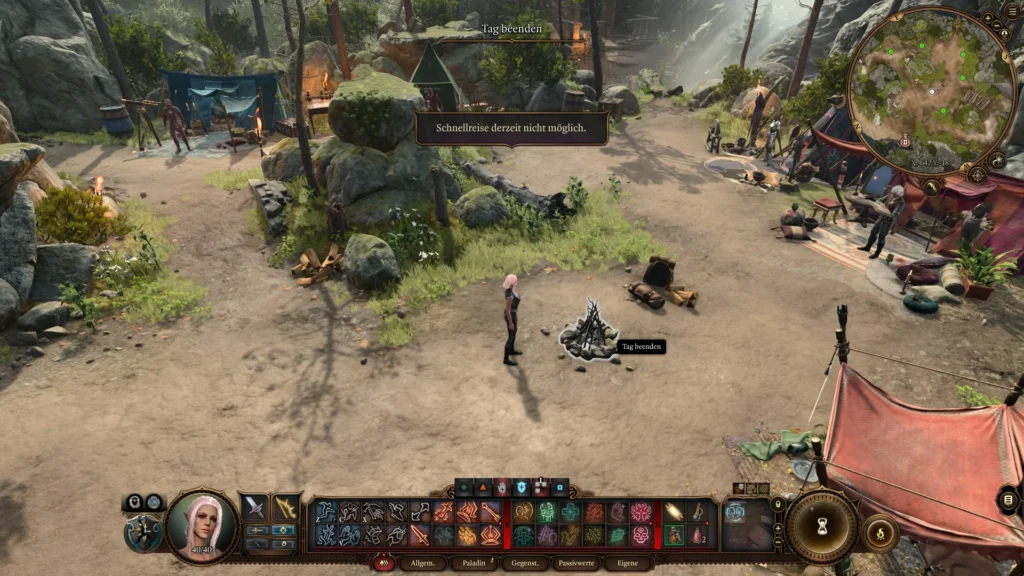
Let’s see the reasons why players face this frustrating issue of “Long Rest Not Working” in Baldur’s Gate 3.
Understanding these causes is important for finding effective solutions.
Players may encounter campsite glitches where they can’t long rest due to being stuck in a conversation or facing problems when interacting with camp items. This can happen unexpectedly and can be a source of frustration for those trying to progress in the game.
Long resting might be prevented when there are unfinished quests or ongoing interactions within the game. Baldur’s Gate 3 may consider these situations as unsafe for resting, which can result in players being unable to use the long rest function.
Save file corruption can be a significant factor behind the long rest not working as intended. This corruption can occur, especially after game crashes, and it affects the functionality of save files, potentially causing issues with long resting.
How To Fix Long Rest Not Working On Baldur’s Gate 3?
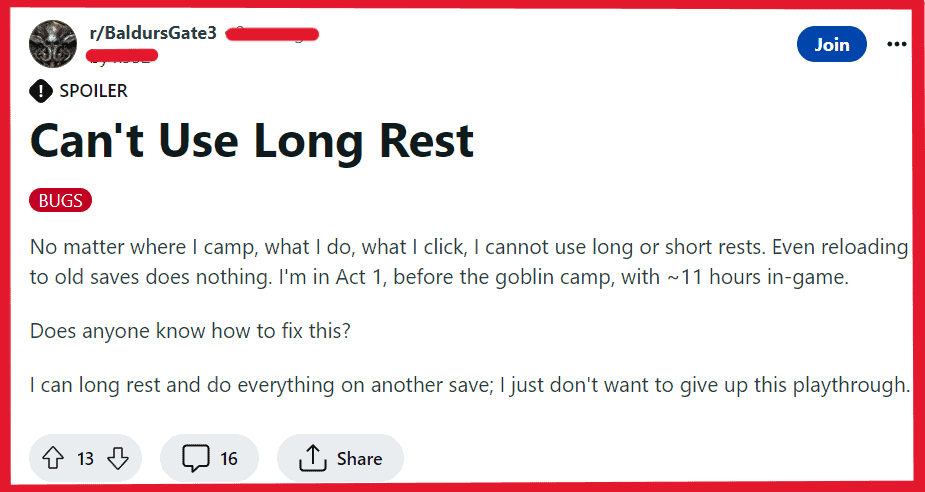
To fix BG3’s long rest not working you need to check for unresolved quests, manage your saves, move between zones, and uninstall and reinstall BG3 with save backups.
1. Check For Unresolved Quests
Before you go ahead with a long rest in Baldur’s Gate 3, it’s important to check if there are any pending quests or things happening around you.
These can cause problems with the long rest, and making sure everything is clear can often fix the issue. Here’s what you need to do:
- Open your Quest Journal (by pressing the ‘Q’ key or clicking the journal icon).
- Take a look at the quests that are currently active, especially those nearby.
- Make progress or complete quests that need your attention.
- Finish any conversations or interactions you’re having with NPCs or objects.
- Return to the campsite and enjoy your uninterrupted long rest.
Following these simple steps will ensure that your long rest in Baldur’s Gate 3 goes smoothly without any interruptions.
2. Manage Your Saves
Save Management is a useful method to deal with potential problems caused by corrupted save files that stop you from having a proper long rest.
By creating a new save and loading it, you might fix the issue. Now, let’s go through the steps for PlayStation, Xbox, and Steam (PC) separately:
For PlayStation:
- Access the in-game menu.
- Select “Load Game.“
- Choose a save file from before the long rest problem.
- Load the selected save file to continue.
For Xbox:
- Access the in-game menu.
- Choose “Load Game.“
- Pick a save file that’s before the long rest problem.
- Load that save file and proceed.
For Steam (PC):
- Access the in-game menu.
- Look for “Load Game.“
- Select a save file that predates the long rest issue.
- Load the chosen save file to resume your game.
These steps make sure you can manage your saves effectively to potentially resolve any issues caused by corrupted save files that affect long rests in Baldur’s Gate 3.
3. Move Between Zones
This solution involves moving to a different area, even briefly, to possibly reset the campsite and allow for a long rest.
It’s similar to giving the game a little refresh, which might work when you can’t long rest.
To use this method, think about teleporting to a nearby waypoint and then coming back to the camp.
Now, let’s go through the steps to do it:
For PlayStation:
- Open the game’s menu.
- Select “Teleport” from the menu.
- Pick a nearby waypoint for the transition.
- Complete the transition, and then head back to camp.
For Xbox:
- Open the game’s menu.
- Choose “Teleport” from the menu.
- Select a nearby waypoint to initiate the transition.
- After a brief transition, return to your camp.
For Steam (PC):
- Access the game menu.
- Opt for “Teleport” from the menu.
- Pick a nearby waypoint to initiate the transition.
- After transitioning, return to your camp.
These steps can potentially help you fix the problem of not being able to long rest in Baldur’s Gate 3 by using the zone transition technique.
4. Uninstall And Reinstall BG3 With Save Backups
When other fixes fail, consider uninstalling and reinstalling Baldur’s Gate 3. Make sure to back up your saved files diligently to prevent data loss.
For PlayStation:
- Delete the game from the PlayStation dashboard.
- Back up save files to the cloud or an external device.
- Reinstall the game and check saved data.
- Load your save and attempt to long rest.
For Xbox:
- Uninstall the game from the Xbox dashboard.
- Back up save files to the cloud or an external device.
- Reinstall the game and check saved data.
- Load your save and attempt to long rest.
For Steam (PC):
- Uninstall the game in your Steam library.
- Back up save files (located in ‘Saved Games’).
- Reinstall the game and check the saved data.
- Load your save and attempt to long rest.
This approach can help resolve long rest issues in Baldur’s Gate 3 when other solutions fail.
5. Contact The BG3 Support Team

If all the mentioned fixes fail to resolve the long rest issue in Baldur’s Gate 3, it’s essential to reach out to the official support team for the game. They can provide personalized assistance and gather more information to address your specific problem.
Getting in touch with the support team is a valuable step when standard fixes don’t work, as they can offer guidance tailored to your situation, ensuring a smoother gaming experience.