
Are you tired of encountering the LowLevelFatalError while playing ARK Survival Ascended?
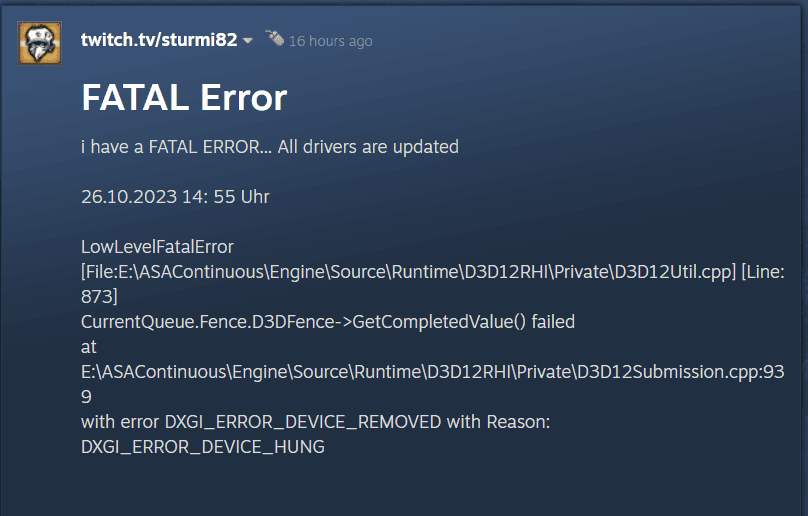
The complete error message is -{ LowLevelFatalError [File:E:\ASAContinuous\Engine\Source\Runtime\D3D12RHI\Private\D3D12Util.cpp] [Line: 873]
CurrentQueue.Fence.D3DFence->GetCompletedValue() failed
at E:\ASAContinuous\Engine\Source\Runtime\D3D12RHI\Private\D3D12Submission.cpp:939
with error DXGI_ERROR_DEVICE_REMOVED with Reason: DXGI_ERROR_DEVICE_HUNG }
This error can be frustrating and prevent you from enjoying the game to its fullest. But don’t worry, we’ve got you covered.
In this blog post, we will provide you with a comprehensive guide on how to fix the LowLevelFatalError in ARK Survival Ascended.
How To Fix ARK Survival Ascended LowLevelFatalError
1. Update Your Graphics Drivers
One of the most common causes of the LowLevelFatalError is outdated graphics drivers.
To update your graphics drivers, follow these steps:
- Press the Windows key + X and select Device Manager.
- Expand the Display adapters section.
- Right-click on your graphics card and select Update driver.
- Select Search automatically for updated driver software and follow the on-screen instructions.
2. Disable Overlays
Overlays from programs such as Discord, Steam, or GeForce Experience can cause conflicts with ARK Survival Ascended, resulting in the LowLevelFatalError.
To disable overlays, follow these steps:
- Open the program that has the overlay you want to disable.
- Look for the overlay settings and disable it.
- Restart your computer and launch ARK Survival Ascended.
3. Underclock Your GPU Settings
In some cases, the LowLevelFatalError can be caused by overclocked GPU settings.
To underclock your GPU settings, follow these steps:
- Download and install MSI Afterburner.
- Open MSI Afterburner and reduce the Core Clock and Memory Clock values by 50 MHz.
- Launch ARK Survival Ascended and check if the error persists.
- If the error persists, repeat the process and reduce the values by another 50 MHz until the error disappears.
4. Verify Game Files
Sometimes, the LowLevelFatalError can be caused by corrupted game files. To verify your game files, follow these steps:
- Open Steam and go to your game library.
- Right-click on ARK Survival Ascended and select Properties.
- Go to the Local Files tab and click on Verify Integrity of Game Files.
- Wait for the process to complete and launch the game to check if the error persists.