

Are you frustrated by the sudden reset of your Warzone rank to level 1?
Many players have encountered this disheartening bug, leading to confusion and concern.
In this blog, we’ll delve into the possible causes behind this issue and provide effective solutions to restore your rank and progression.
How To Fix Warzone Rank Reset To 1 Bug?
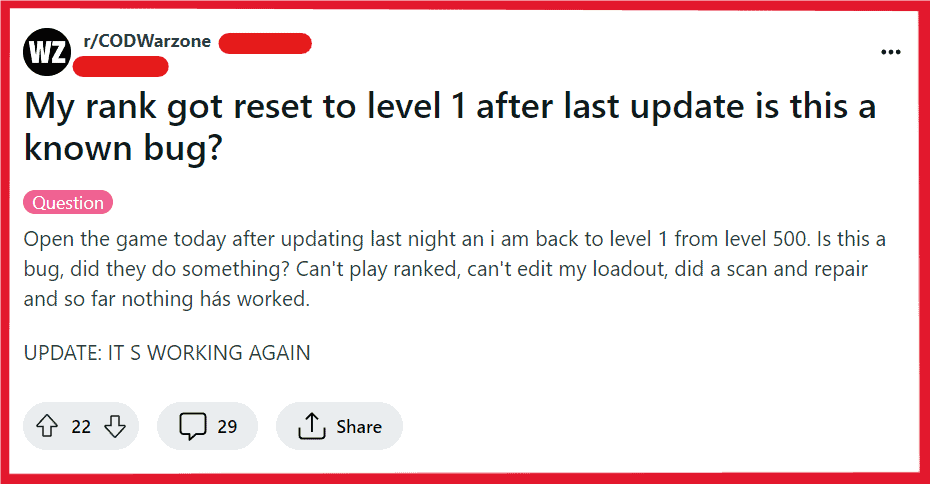
To fix Warzone rank reset to 1 bug, you can avoid ranked play, check server status, and restart Warzone. Additionally, you can clear console cache or verify Warzone game files.
1. Avoid Ranked Play
If the rank reset issue is prevalent and seems to be triggered by playing ranked matches, it might be wise to avoid this game mode until the bug is addressed.
This can prevent the potential frustration of losing your rank progress due to a reset.
2. Check The Server Status Of The COD Warzone
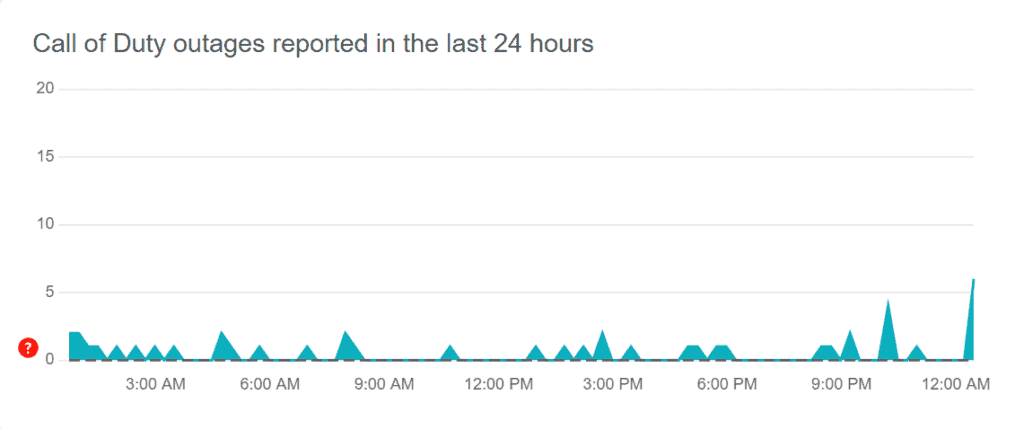
The rank reset to level 1 in Warzone can often be a result of server issues.
When the game’s servers are down or experiencing instability, player data might not load correctly, leading to apparent rank resets.
By verifying the server status, you can ensure that the issue isn’t on your end and avoid unnecessary troubleshooting steps.
3. Restart Warzone
Sometimes, a simple restart of the game can resolve temporary glitches, including the rank reset issue.
This action can help refresh your connection to the game servers and properly load your profile data.
For PlayStation:
- Hold the PS button on your controller.
- Select “Close Application.”
- Confirm to close Warzone.
- After a moment, restart Warzone from the home screen.
For Xbox:
- Press the Xbox button to open the guide.
- Select Warzone and press the Menu button.
- Choose “Quit.”
- Relaunch Warzone from the home screen after a moment.
For PC (Battle.net Launcher):
- Close Warzone by clicking ‘X’ or pressing Alt + F4.
- If unresponsive, use Task Manager (Ctrl + Shift + Esc) to end the task.
- Wait briefly, then reopen Battle.net.
- Click “Play” on the Warzone tab.
4. Clear Console Cache Or Verify Warzone Game Files
Clearing your console’s cache or verifying Warzone game files on your PC can fix issues caused by corrupted data.
This process ensures that all game files are in good order and can sometimes restore your rank.
For PlayStation:
- Turn off the PlayStation completely.
- Unplug the power cord.
- Wait 1-2 minutes.
- Reconnect the power cord.
- Power on the PlayStation.
- Launch Warzone.
For Xbox:
- Fully shut down the Xbox.
- Disconnect the power cable.
- Wait 1-2 minutes.
- Reconnect the power cable.
- Turn on the Xbox.
- Start Warzone.
For PC (Battle.net):
- Open Battle.net client.
- Click ‘Warzone’ then ‘Options.’
- Select ‘Scan and Repair.’
- Click ‘Begin Scan.’
- Launch Warzone post-scan.
For PC (Steam):
- Open Steam client.
- Right-click ‘Warzone’ in Library.
- Choose ‘Properties’ > ‘Local Files.’
- Select ‘Verify Integrity of Game Files.’
- Run Warzone after verification.
5. Contact Support Of COD
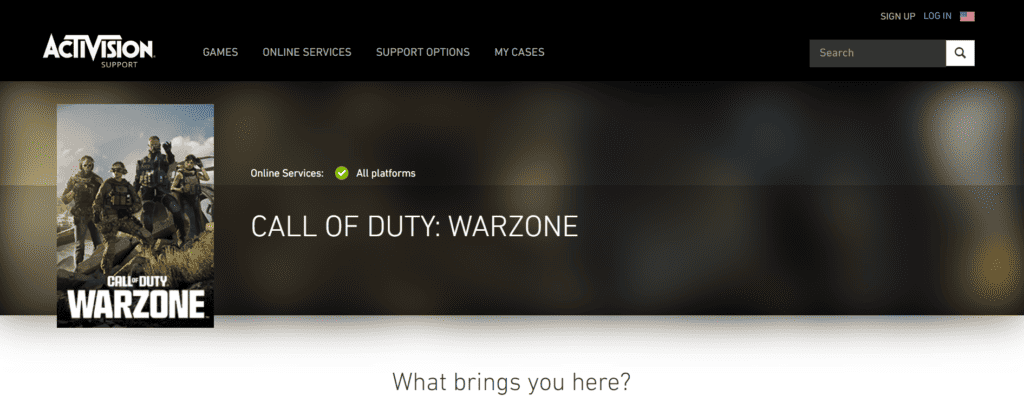
If your rank is still showing as a reset after checking servers and performing the steps above, it may be time to reach out for direct assistance. The support team can investigate and potentially restore your rank.
- Go to the Activision Support website.
- Submit a help request with details of your issue, including any error messages and the steps you’ve already taken.