
Are you a Pokemon GO player who is having trouble with the Campfire feature? If so, you’re not alone.
Many players have reported issues with the Campfire feature not working properly, which can be frustrating when trying to coordinate with other players for raids and events.
Fortunately, there are several solutions that can help fix the problem.
In this article, we will provide step-by-step instructions on how to fix the Pokemon GO Campfire not working issue, so you can get back to playing and enjoying the game with your fellow trainers.
How To Fix Pokemon Go Campfire Not Working?
1. Connect Your Pokemon GO Account To Facebook Or Google
If you’re trying to access Campfire for the first time, you may encounter an issue where you can only log in through Facebook or Google. In this case, you’ll need to connect your Pokemon GO account to one of those platforms first.
To do this, go to your Pokemon GO settings and select “Account” then “Connect with Facebook” or “Connect with Google”.
Once your account is connected, select the Campfire icon on your Pokemon GO screen and create a new Campfire name. Unfortunately, you won’t be able to use your existing Campfire name in this case.
2. Use A VPN
Despite Niantic claiming that Campfire is available globally, it may not be available in some countries due to regional restrictions. If this is the case, you can use a VPN (Virtual Private Network) to access Campfire.
A VPN can help you bypass regional restrictions and connect to servers in other countries where Campfire is available.
To use a VPN, download and install a reputable VPN app from the App Store or Google Play Store, then connect to a server in a country where Campfire is available. Once connected, try accessing Campfire again and it should work.
3. Use The Campfire Button Within The Pokemon Go App
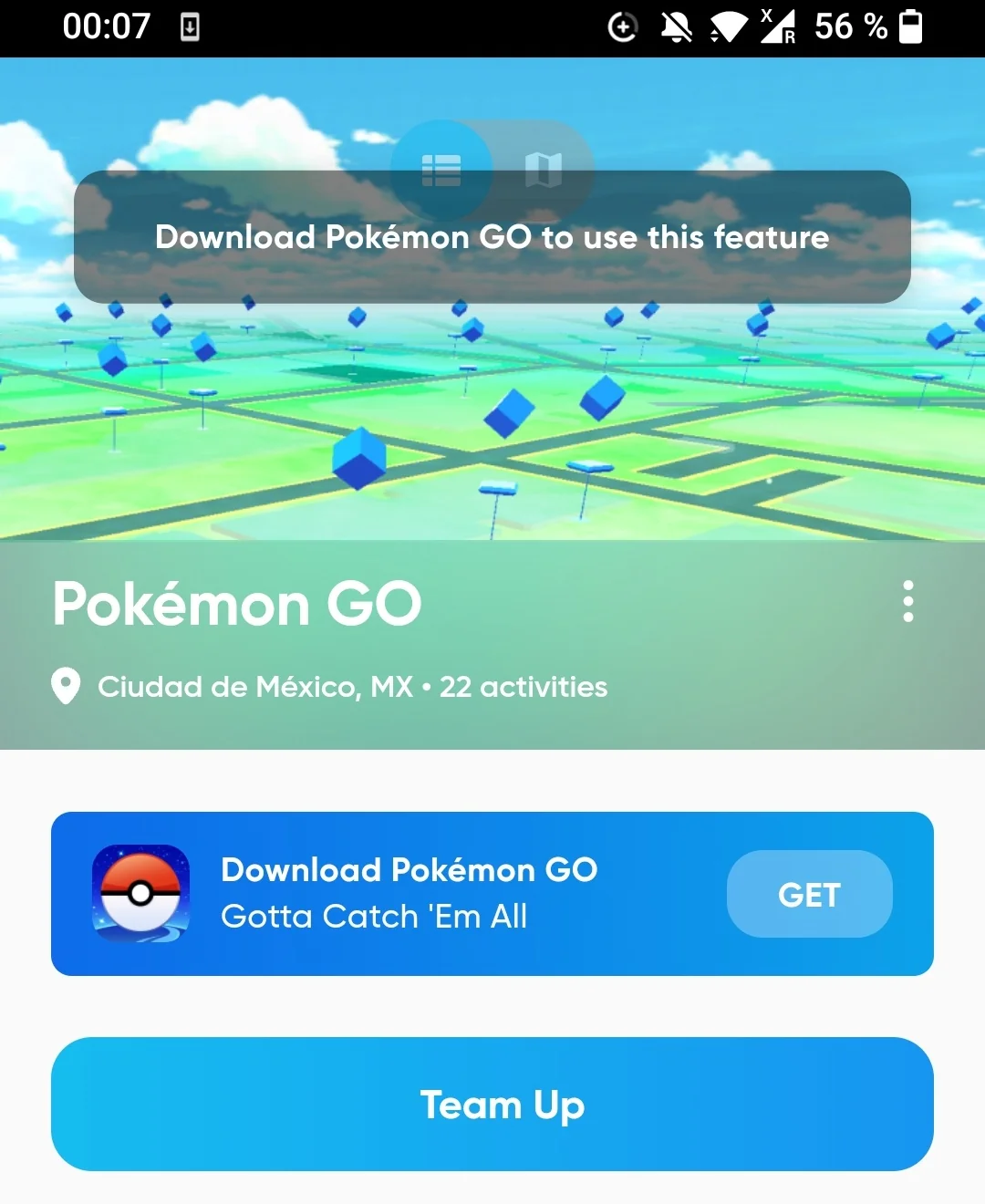
If you’re experiencing an error while trying to access Campfire from the standalone app, you can try using the Campfire button within the Pokemon Go app instead. To do this, delete the Campfire app from your device, then open the Pokemon Go app.
If your account has been invited to Campfire, you should see a Campfire button within the Pokemon Go app. Tap on the button to access Campfire.
This is the current solution given by Niantic for users who are experiencing issues with the standalone Campfire app.
4. Log Out And Log Back In
Sometimes, simply logging out of your Pokemon GO account and then logging back in can help refresh the connection and fix the Campfire issue.
To log out of your account, go to your Pokemon GO settings and select “Sign Out”. Then, log back in with your account credentials and try accessing Campfire again.
5. Connect Your Pokemon GO Account To Another Platform
Another solution is to connect your Pokemon GO account to another platform such as Facebook or Google. To do this, go to your Pokemon GO settings and select “Account” then “Connect with Facebook” or “Connect with Google”.
Once your account is connected, try accessing Campfire again. This can sometimes help fix any issues with the connection between your device and the Pokemon GO servers.
6. Delete And Reinstall Campfire
If the above steps did not work, try deleting the Campfire app from your device and then reinstalling it from the App Store or Google Play Store. This can sometimes help fix any bugs or glitches that may be causing the issue.
To delete the app, press and hold the Campfire icon on your home screen until it starts to shake, then tap the “X” in the corner of the icon. Then, go to the App Store or Google Play Store and download and install the app again.
If nothing works then you may try contacting the Niantic customer support by clicking here. They will guide you with better options.