
Cities: Skylines 2 is a popular city-building game that has captivated gamers around the world.
However, one of the most common issues that players have been experiencing is with the Paradox Launcher not working.
This problem can be frustrating, preventing players from launching the game and enjoying the immersive experience it offers.
But don’t worry, we’ve got you covered. In this guide, we will walk you through the steps to fix the Cities: Skylines 2 Paradox Launcher when it’s not working.
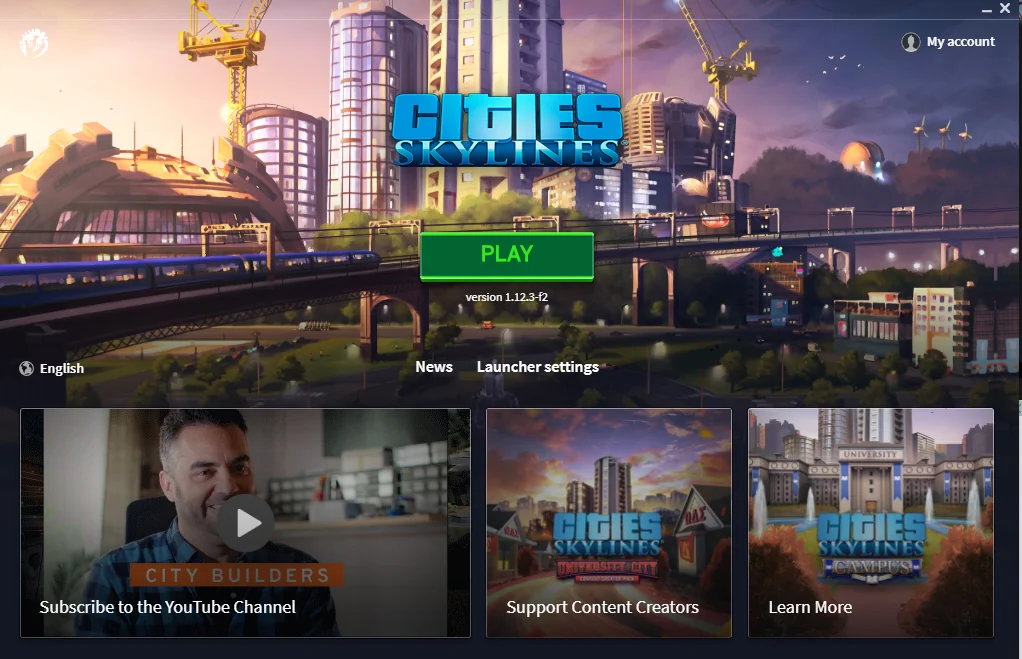
How To Fix Cities Skylines 2 Paradox Launcher Not Working?
1. Download The Latest Visual C++ Redistributable
The Paradox Launcher requires the Microsoft Visual C++ Redistributable to run. Download the latest version of the Visual C++ Redistributable from the official Microsoft website and install it on your computer.
2. Make Sure Steam.exe And The Game’s .exe File Are On The Allowed List
You need to make sure that steam.exe and the game’s .exe file are on the allowed list for both Windows Defender-Ransomware and your antivirus program.
Sometimes, antivirus programs can block the Paradox Launcher or the game’s .exe file from running.
To fix this, make sure that both steam.exe and the game’s .exe file are on the allowed list for both Windows Defender-Ransomware and your antivirus program.
3. Check Your Antivirus Quarantine Section
Occasionally, the bootstrapper-v2.exe file gets falsely flagged as a virus and is quarantined by antivirus programs.
Check your antivirus quarantine section to see if this file has been quarantined. If it has, restore the file and add it to the allowed list for your antivirus program.
4. Remove The Paradox Launcher
Removing the Paradox Launcher is a fix for the Cities Skylines 2 Paradox Launcher not working issue. Here are the steps to remove the Paradox Launcher:
- Make sure that Steam is completely closed before proceeding.
- Go to the Windows Start menu and search for “Add or remove programs”. Click on the result to open the Add/Remove Programs menu.
- Scroll through the list of installed programs until you find the Paradox Launcher. Click on it to select it.
- Click on the “Uninstall” button to begin the uninstallation process. Follow the on-screen instructions to complete the uninstallation process.
- Once the Paradox Launcher has been uninstalled, restart your computer to ensure that any remaining files or processes are cleared.
5. Repair Launcher File
If none of the above steps work, try repairing the launcher file. Go to the Add/Remove Programs menu in Windows and select the Paradox Launcher. Click on the “Repair” button to repair the launcher file.
If you are still not able to get rid of the above issue, then you can try contacting the Cities Skylines 2 support by clicking here. They will guide you with better options.